
Setting up exceptions
Keep selected apps and sites outside the VPN
Keep the VPN on while selected apps or sites connect directly. No need to change countries or switch the whole connection off each time.
For an app
- 1
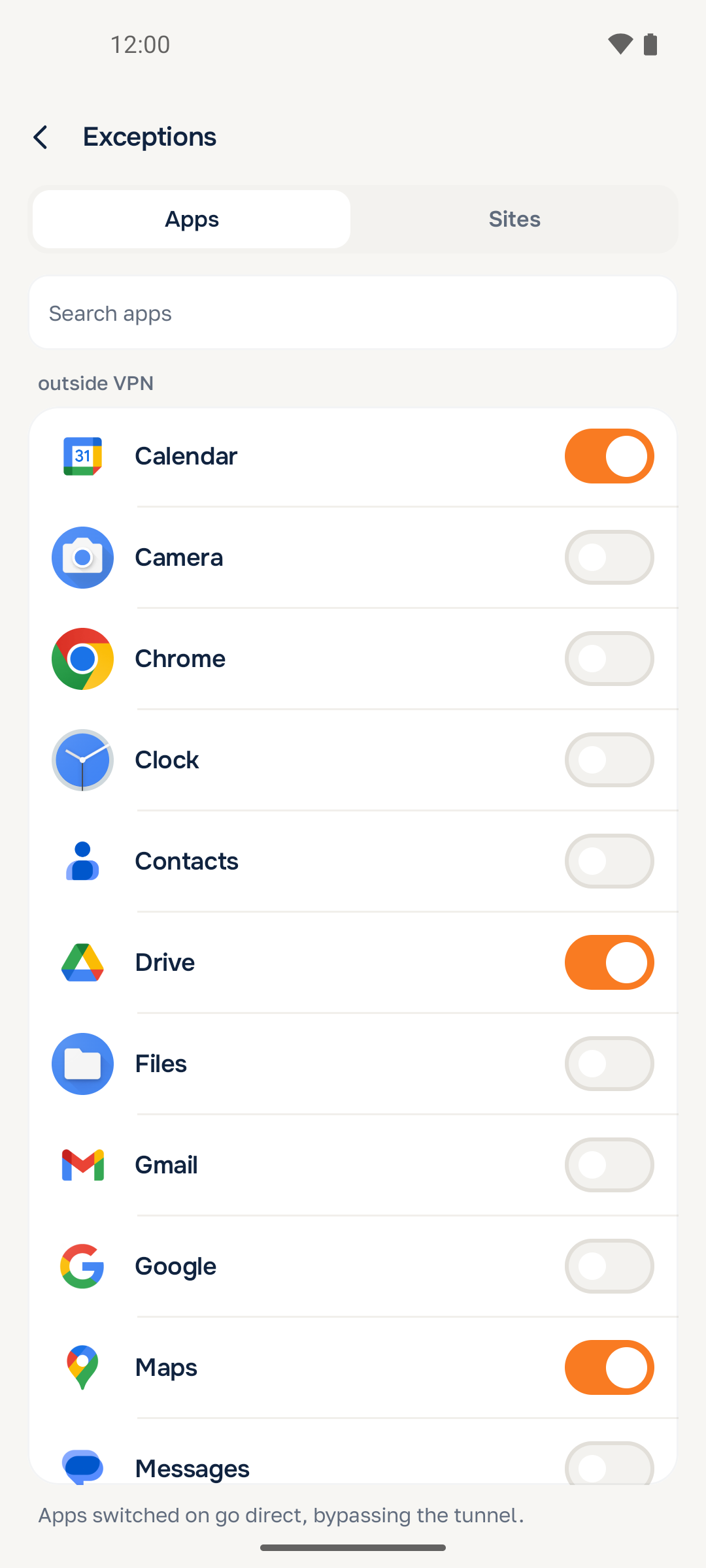
Open Exceptions on the home screen and select Apps.
- 2
Find the app in the list or use search. Turn on the switch next to its name.
- 3
If the VPN is already connected, return to the home screen, disconnect and connect again.
A switch that is on means the app connects directly, outside the VPN.
For a site
- 1
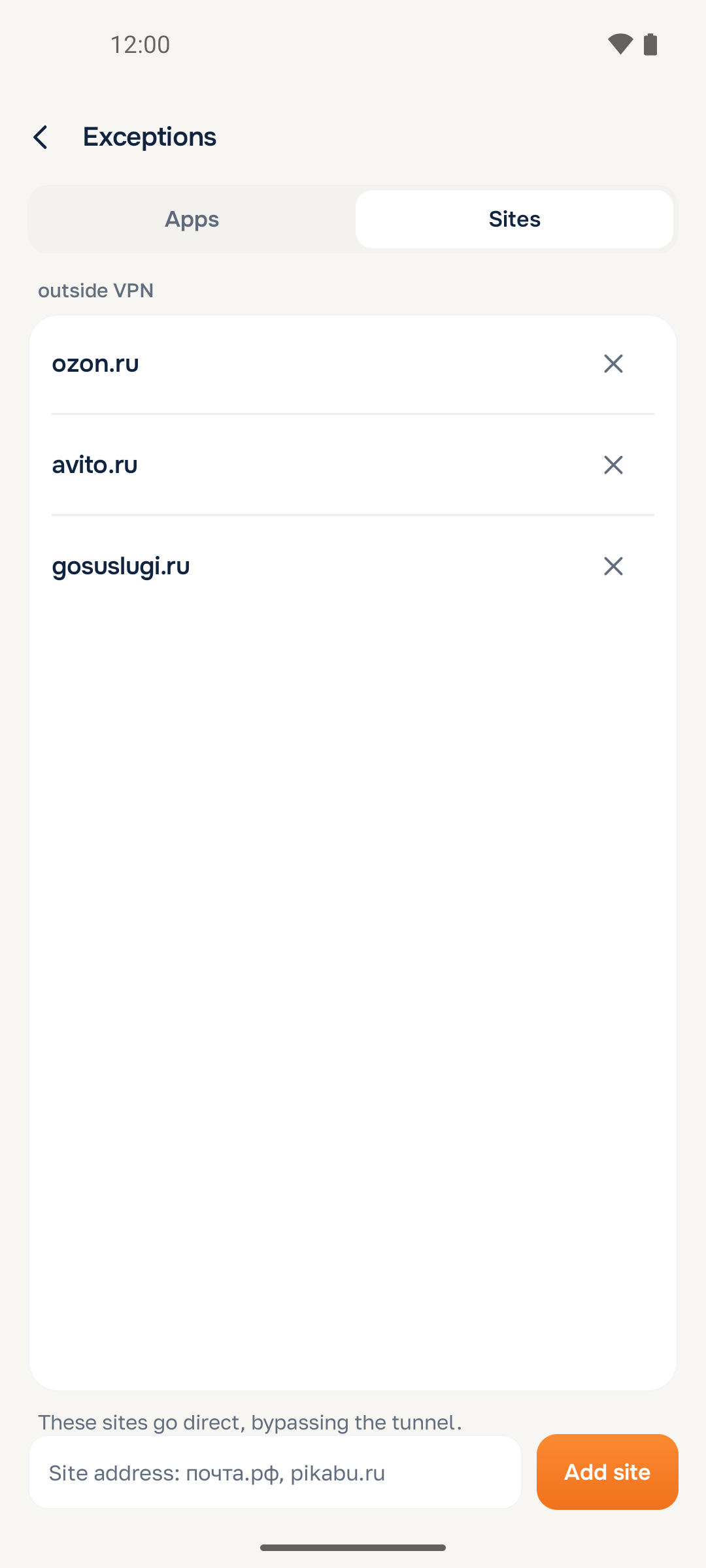
Open Sites in Exceptions.
- 2
Enter a domain, such as example.com, and tap Add site. You do not need the address of an individual article.
- 3
Check that the domain appears in the list. Reconnect if the VPN is on.
Remove an exception
For an app, turn its switch off. For a site, tap the cross next to its domain. Reconnect if the VPN was on. The usual Liska VPN routing rules will then apply.
Did the change take effect?
Check the switch or domain spelling, reconnect the VPN, then reopen the app or site. If the issue remains, contact support and tell us which exception you added.
Need a hand?
Tell us what happened and at which step. Contact support in the app menu prepares an email with the app version and diagnostic details. You choose when to send it.
support@liskavpn.com